
非官方中文翻译
本页译自 MNE-Python 官方文档:
查看英文原文 ↗。
文档版权归 MNE Developers 所有(BSD-3-Clause)。
说明
转到末尾下载完整示例代码。
如何把 3D 电极位置转换为 2D 图像#
有时需要把电极的 3D 表示转换为 2D 图像。例如在皮层脑电(ECoG)中,常见做法是在大脑图像上绘制散点图,每个点代表一个电极。
本示例展示在 MNE-Python 中实现该目标的两种方式。若有每个电极的 3D 位置,可用 PyVista 对大脑某一视角截图;若没有 3D 位置、只有电极在大脑上的 2D 图像,则可用 mne.viz.ClickableImage 类在图像上自行选择电极位置。
# Authors: Christopher Holdgraf <choldgraf@berkeley.edu>
#          Alex Rockhill        <aprockhill@mailbox.org>
#
# License: BSD-3-Clause
# Copyright the MNE-Python contributors.
import numpy as np
from matplotlib import pyplot as plt

import mne
from mne.io.fiff.raw import read_raw_fif
from mne.viz import (
    ClickableImage,  # noqa: F401
    plot_alignment,
    set_3d_view,
    snapshot_brain_montage,
)

misc_path = mne.datasets.misc.data_path()
subjects_dir = misc_path / "ecog"
ecog_data_fname = subjects_dir / "sample_ecog_ieeg.fif"

# We've already clicked and exported
layout_name = subjects_dir / "custom_layout.lout"
加载数据#
首先加载示例 ECoG 数据集,用于生成 2D 快照。
raw = read_raw_fif(ecog_data_fname)
raw.pick([f"G{i}" for i in range(1, 257)])  # pick just one grid

# Since we loaded in the ecog data from FIF, the coordinates
# are in 'head' space, but we actually want them in 'mri' space.
# So we will apply the head->mri transform that was used when
# generating the dataset (the estimated head->mri transform).
montage = raw.get_montage()
trans = mne.coreg.estimate_head_mri_t("sample_ecog", subjects_dir)
montage.apply_trans(trans)
Opening raw data file /home/circleci/mne_data/MNE-misc-data/ecog/sample_ecog_ieeg.fif...
    Range : 0 ... 112 =      0.000 ...     0.700 secs
Ready.
将 3D 电极投影到 2D 快照#
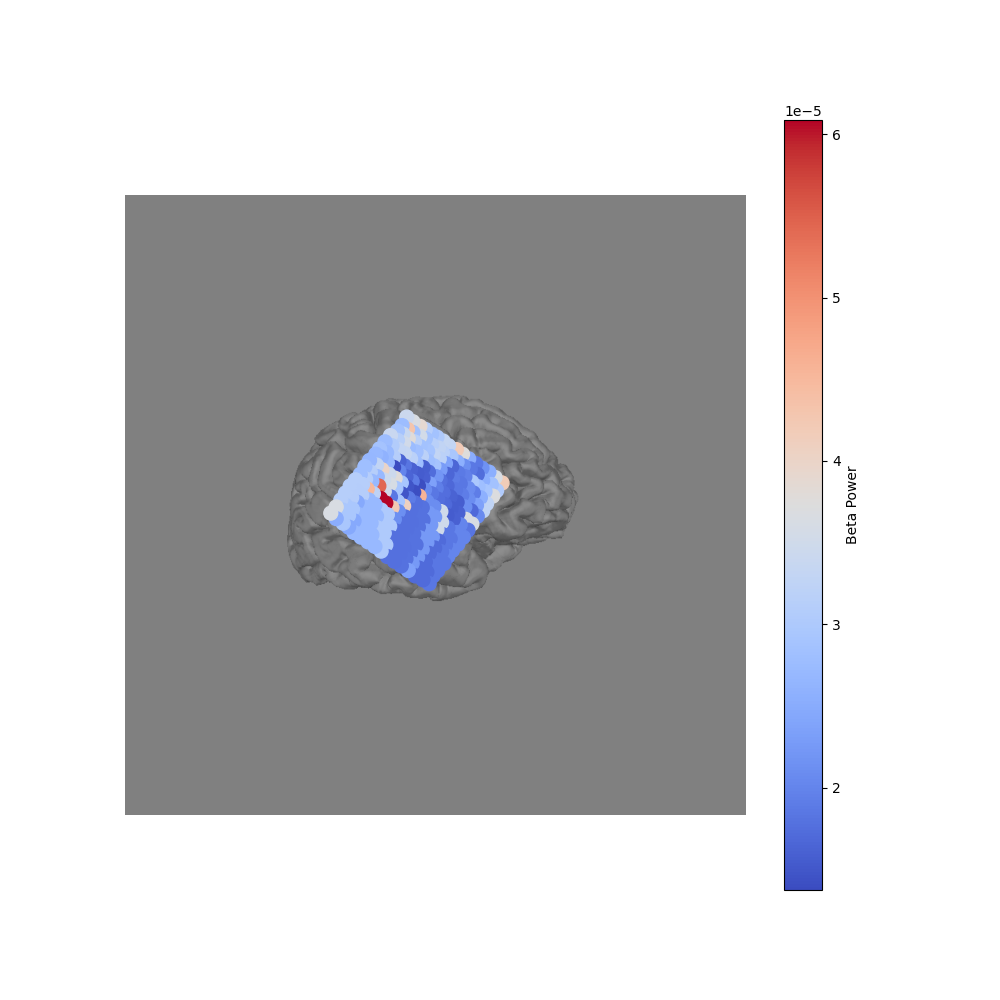
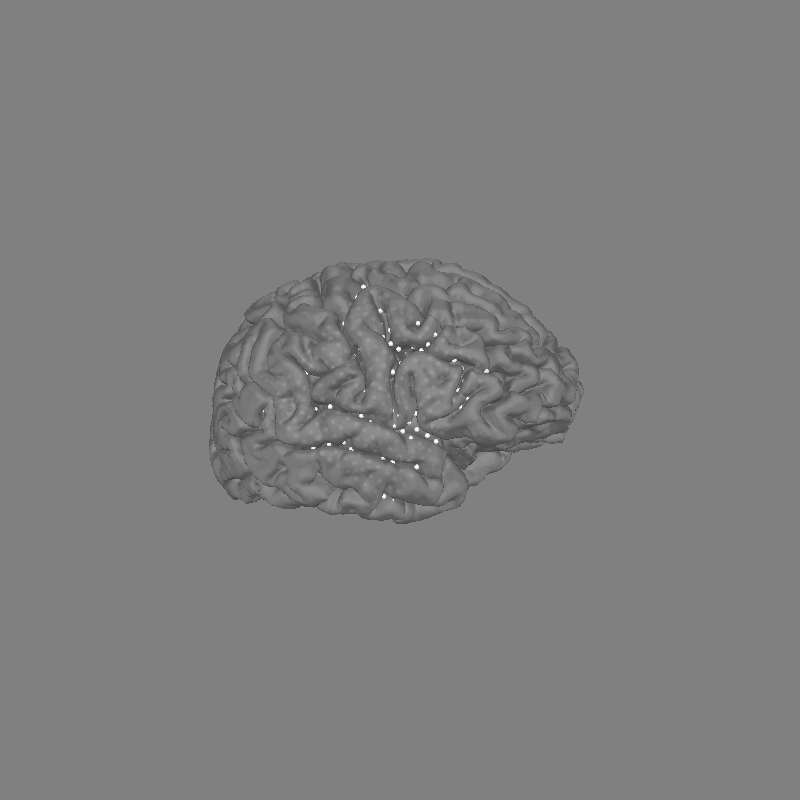
由于有每个电极的 3D 位置,可用 mne.viz.snapshot_brain_montage() 函数返回 2D 图像以及电极在该图像上的位置。它通常与可视化电极位置的 mne.viz.plot_alignment() 配合使用。
fig = plot_alignment(
    raw.info,
    trans=trans,
    subject="sample_ecog",
    subjects_dir=subjects_dir,
    surfaces=dict(pial=0.9),
)
set_3d_view(figure=fig, azimuth=20, elevation=80)
xy, im = snapshot_brain_montage(fig, montage)

# Convert from a dictionary to array to plot
xy_pts = np.vstack([xy[ch] for ch in raw.ch_names])

# Compute beta power to visualize
raw.load_data()
beta_power = raw.filter(20, 30).apply_hilbert(envelope=True).get_data()
beta_power = beta_power.max(axis=1)  # take maximum over time

# This allows us to use matplotlib to create arbitrary 2d scatterplots
fig2, ax = plt.subplots(figsize=(10, 10))
ax.imshow(im)
cmap = ax.scatter(*xy_pts.T, c=beta_power, s=100, cmap="coolwarm")
cbar = fig2.colorbar(cmap)
cbar.ax.set_ylabel("Beta Power")
ax.set_axis_off()

# fig2.savefig('./brain.png', bbox_inches='tight')  # For ClickableImage
Channel types:: ecog: 256
Reading 0 ... 112  =      0.000 ...     0.700 secs...
Filtering raw data in 1 contiguous segment
Setting up band-pass filter from 20 - 30 Hz

FIR filter parameters
---------------------
Designing a one-pass, zero-phase, non-causal bandpass filter:
- Windowed time-domain design (firwin) method
- Hamming window with 0.0194 passband ripple and 53 dB stopband attenuation
- Lower passband edge: 20.00
- Lower transition bandwidth: 5.00 Hz (-6 dB cutoff frequency: 17.50 Hz)
- Upper passband edge: 30.00 Hz
- Upper transition bandwidth: 7.50 Hz (-6 dB cutoff frequency: 33.75 Hz)
- Filter length: 107 samples (0.669 s)
手动创建 2D 电极位置#
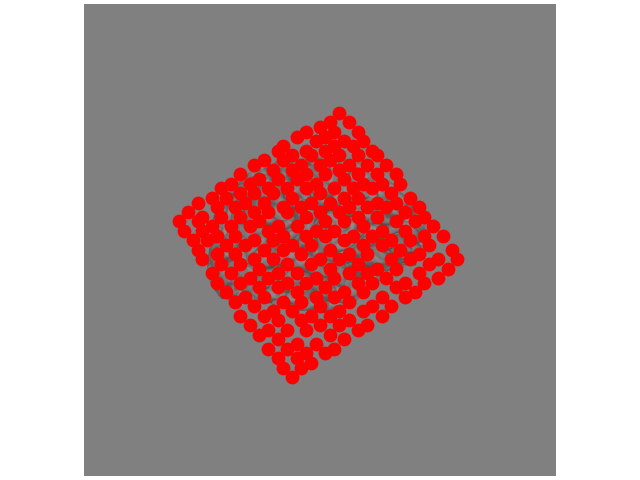
若没有 3D 电极位置,仍可创建电极的 2D 表示。假设能在 2D 图像上看到电极,可用 mne.viz.ClickableImage 以交互方式打开图像:在图像上点击的点,其 x/y 坐标会被保存。
我们将打开一个图像文件,用 ClickableImage 返回鼠标点击的 2D 位置(或加载已创建的文件),再把这些 xy 位置作为布局返回,供绘制地形图使用。
# This code opens the image so you can click on it. Commented out
# because we've stored the clicks as a layout file already.

# # The click coordinates are stored as a list of tuples
# im = plt.imread('./brain.png')
# click = ClickableImage(im)
# click.plot_clicks()

# # Generate a layout from our clicks and normalize by the image
# print('Generating and saving layout...')
# lt = click.to_layout()
# lt.save(layout_name)  # save if we want

# # We've already got the layout, load it
lt = mne.channels.read_layout(layout_name, scale=False)
x = lt.pos[:, 0] * float(im.shape[1])
y = (1 - lt.pos[:, 1]) * float(im.shape[0])  # Flip the y-position
fig, ax = plt.subplots(layout="constrained")
ax.imshow(im)
ax.scatter(x, y, s=80, color="r")
ax.set_axis_off()
脚本总运行时间:(0 分 4.247 秒)